Question Types in Moodle: An Overview with Practical Examples
Good tests stand or fall on the choice of the right question type. Moodle comes with 16 question types by default: from quick true/false questions to dynamically calculated questions with random values. Those who are familiar with them can create exams that assess students more fairly, reveal more about their level of learning, and can be graded automatically for the most part.
This article introduces all standard question types, categorizes them from a pedagogical perspective, and provides a specific example of how each one can be used. At the end of the article, you’ll find a decision-making guide, an overview of popular additional question types from the Moodle community, and practical tips that make a difference in your day-to-day work.
Technically, tests are an activity plugin (mod_quiz). It allows you to compile questions of various types (multiple choice, matching, free text, calculations, and more) into a graded or ungraded quiz. To do this, create a test in the course using the activity selection and then add the questions to it. Through the settings, you can flexibly control time limits, the number of attempts, the grading method (e.g., highest/lowest/average score), as well as the feedback and review behavior.
Before we get started: 3 things you should know
1. It’s best to manage questions in the question bank , not in the test.
Questions are stored in the question bank and incorporated into tests from there. This is worth doing right from the start: A question can be reused in multiple tests, maintained centrally, and organized using categories and tags. In addition, questions in the question bank can be shared with other instructors.
Learn more about the Moodle "Question Bank" feature
2. Automatic vs. manual grading.
Moodle grades many question types automatically. This saves a tremendous amount of time with large groups. One exception is the free-response question, which is usually graded manually. The decision for or against a particular question format therefore also depends on how many learners you have in the course and what you are able to handle.
3. Use standard question types over plugin-based ones, especially for exams.
The question types listed here first are part of the Moodle core and remain stable across version updates. Additional question types from the plugin directory are often very helpful and offer variety, but they can cause problems during updates or imports. For legally compliant online exams, it is therefore recommended to prioritize the standard question types. This ensures that exams remain comparable across multiple Moodle versions.
The Standard Question Types in Detail
Quick Links
Click on the question type names in the table to learn more.
| Question Type | Application Scenarios | |
|---|---|---|
| 1 | Multiple-Choice (Multiple Selection) | The all-in-one solution for knowledge quizzes: Quick to create, automatically graded, and highly scalable. |
| 2 | True / False | For quick fact checks, engagement questions, or as a warm-up in formative assessments. |
| 3 | Matching | Whenever terms, definitions, pairs, or categories need to be matched with one another. |
| 4 | Arrangement | For workflows, process steps, timelines, or rankings—anywhere where the sequence is the learning objective. |
| 5 | Short Answer | For terms, technical vocabulary, or short factual answers where recognition (as in multiple-choice questions) would be too easy. |
| 6 | Numerical | For arithmetic problems with a specific numerical result, where rounding or measurement tolerance is permitted. |
| 7 | Free-form text (essay) | For justifications, reflections, case studies, and code explanations—anywhere there isn't just one right answer. |
| 8 | Cloze Exercise (Embedded Answers) | When a single question is intended to assess several related aspects within a coherent context. |
| 9 | Drag-and-Drop on Text | Like a fill-in-the-blank exercise, but more visual and interactive—great for engaging students and for mobile devices. |
| 10 | Drag and Drop onto Image | For anything spatial or visual—labels, diagrams, anatomy, user interfaces, maps. |
| 11 | Drag-and-Drop Markers | When the exact location is the actual learning objective and no assistance is to be provided through visible fields. |
| 12 | Selection of Fill-in-the-Blank Exercises | As a space-saving, mobile-friendly alternative to fill-in-the-blank exercises when the answer options need to be predetermined. |
| 13 | Calculated | In STEM subjects and in any situation where the same problem-solving logic needs to be tested using different numbers—also as an effective measure against cheating. |
| 14 | Calculated Multiple-Choice | When a calculation result is to be tested in a multiple-choice format—including plausible, pre-calculated incorrect options (distractors). |
| 15 | Easy to calculate | As a quick introduction to random-based math problems, without having to familiarize yourself with the full range of features of the calculated question. |
| 16 | Random Assignment of Short Answers | If you have a large pool of short-answer questions and want to use them to generate dynamically changing matching exercises. |
| 17 | Special Case: Description | For subheadings, scenario descriptions, or notes that a subsequent set of questions refers to. |
- Which Question Type Should You Use, and When? A Guide to Help You Decide
- Popular Additional Question Types from the Community
- Practical Tips for Productive Use
- Conclusion
1. Multiple-Choice (Multiple Selection)
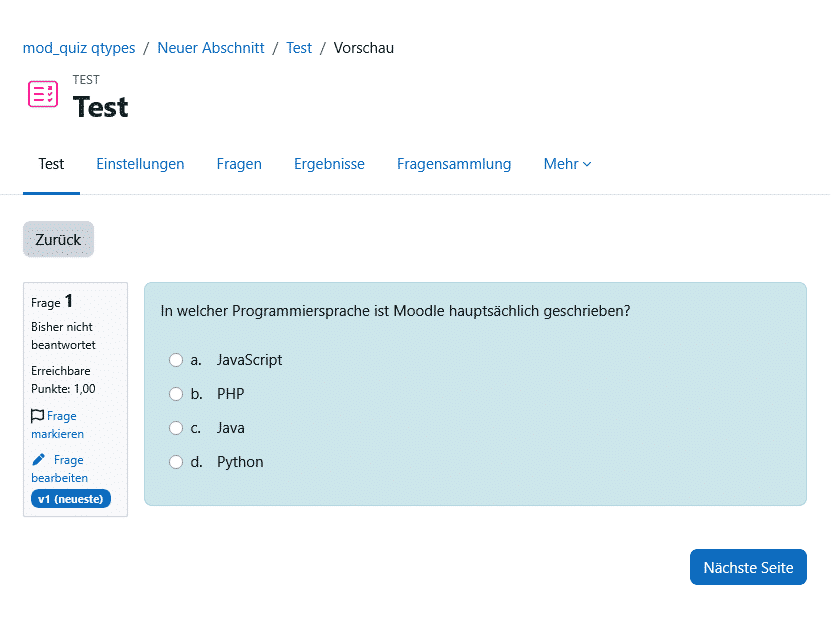
Participants choose from several options. They can choose between single-choice (exactly one correct answer) or multiple-choice (several correct answers). Answers can be weighted individually, accompanied by feedback, and shuffled.
When to use it: The all-around solution for knowledge quizzes: Quick to set up, automatically graded, and highly scalable.
Example: “Which of the following statements about the GDPR are true?” with five options, three of which are correct. Each correct answer is worth one-third of the points, while incorrect answers result in a point deduction, so that simply clicking all options is not rewarded.
Practical tip: For multiple-answer questions, apply a point deduction for incorrect options. Otherwise, participants will simply check everything. For single-choice exams, it’s best to include at least four—preferably five to six—answer options to reduce the likelihood of guessing correctly.
2. True / False
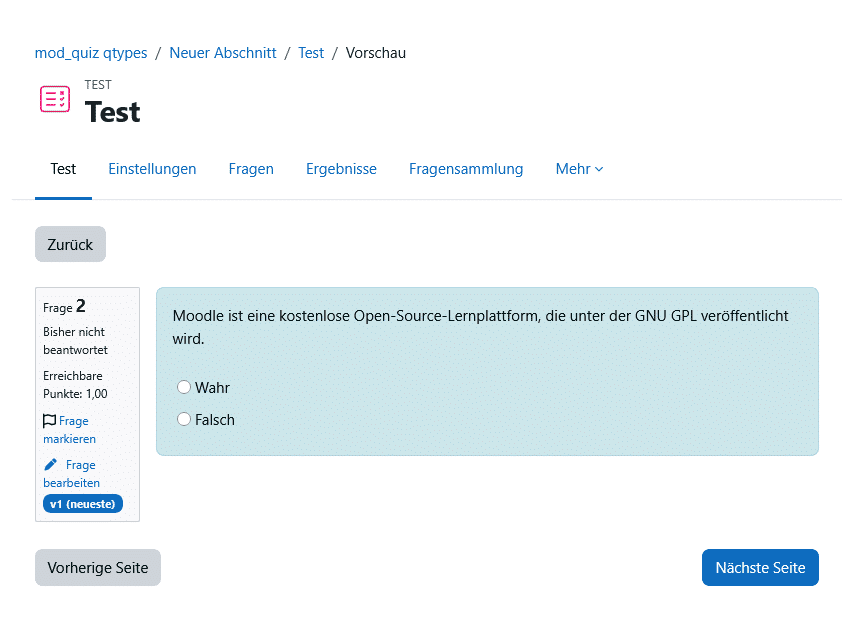
A statement to which there are only two possible answers—true or false.
When to use: For quick fact checks, activation questions, or as a warm-up in formative assessments.
Example: Moodle Workplace a standalone software program that is installed independently of Moodle LMS.” (Incorrect—Workplace is an extension based on Moodle LMS.)
Practical tip: Use this type with caution for graded online exams: The probability of guessing correctly is 50 percent. In formative self-tests with immediate feedback, however, this type is ideal.
3. Matching
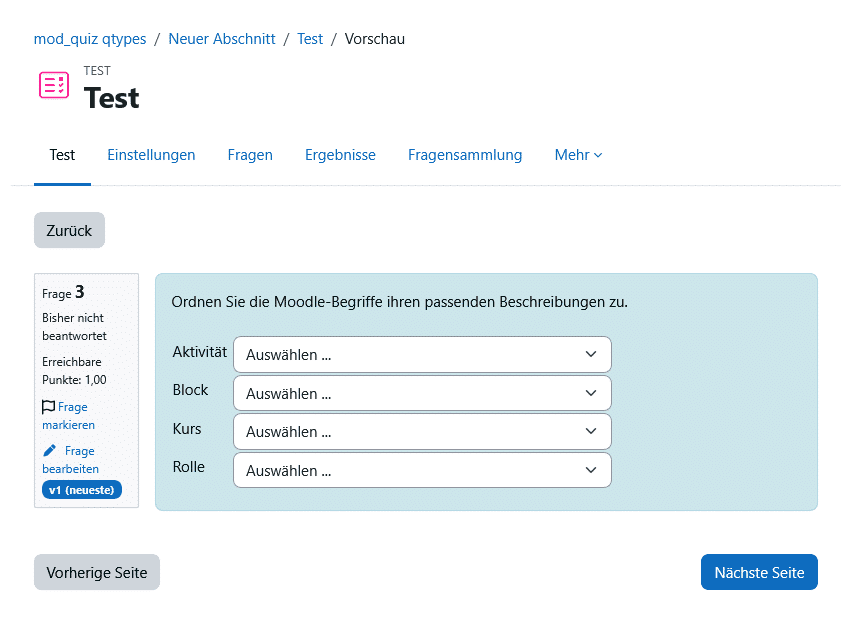
A list of sub-questions is linked to a list of answers, each via drop-down menus.
When to use: Whenever terms, definitions, pairs, or categories need to be matched with one another.
Example: In a language course, ten English vocabulary words are matched with their German translations. Or in an IT training course: Protocol → Standard Port (HTTPS → 443, SSH → 22, …).
Practical tip: Add more answer options than there are sub-questions (so-called distractors) so that the final answer cannot be guessed by process of elimination.
4. Arrangement
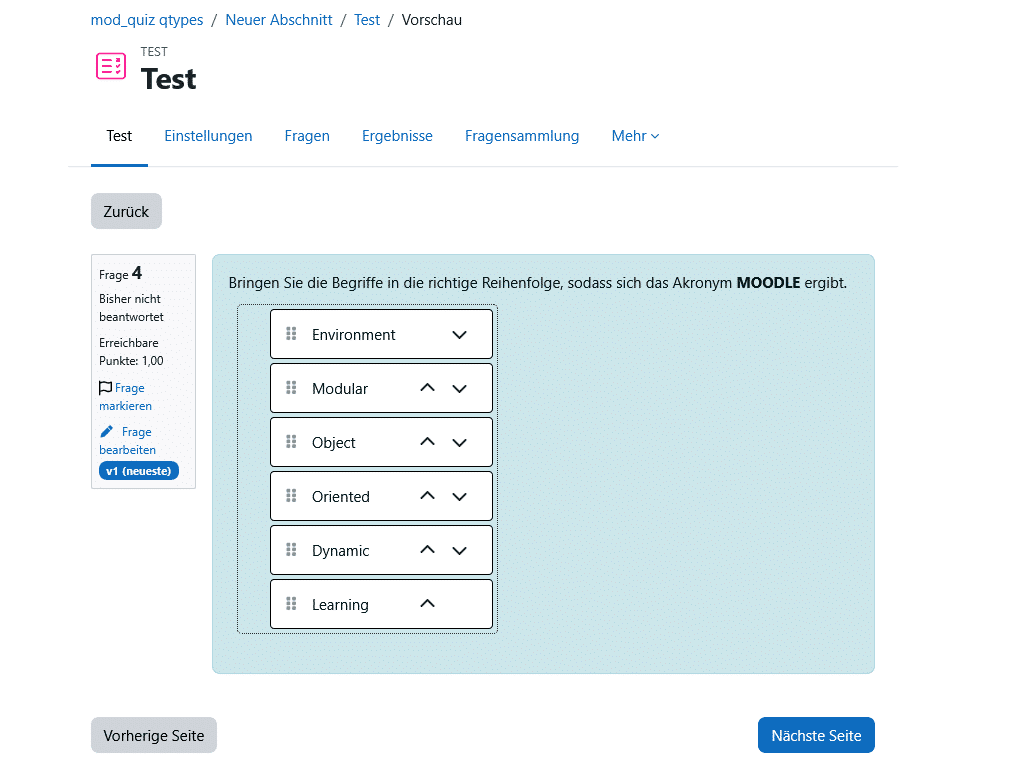
Several words, phrases, or images are displayed in random order. The task is to put them in the correct order. Since Moodle 5.0, the "Arrange" question type has been a standard feature in the core (previously, it was a community plugin).
When to use: For sequences, process steps, timelines, or rankings—anywhere where the order is the learning objective.
Example: "Put the steps of a Git workflow in the correct order." with the elements git add, git commit, git push. Or: arrange historical events in chronological order.
Practical tip: Use this type only if there is exactly one unambiguously correct sequence. Otherwise, the automatic grading will be unfair in cases of ambiguous sequences.
5. Short Answer
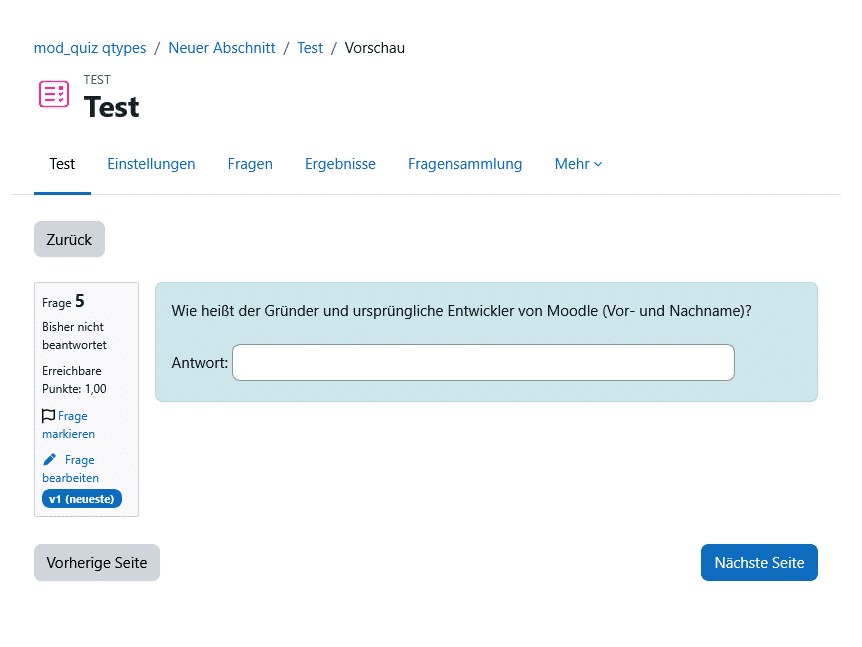
Participants type in a word or a short phrase. Moodle compares the input to stored model answers; wildcards allow for variations. The grading may or may not be case-sensitive.
When to use: For terms, technical vocabulary, or short factual answers where recognition (as in multiple-choice questions) would be too easy.
Example: "What is the name of the Moodle cron command that runs scheduled tasks?". The following are accepted cron.php, admin/cli/cron.php and spelling variations.
Practical Tip: Keep in mind upper- and lowercase letters, synonyms, and common typos. Specify multiple accepted answers using wildcards (*), otherwise correct answers will be marked as incorrect for no reason.
6. Numerical
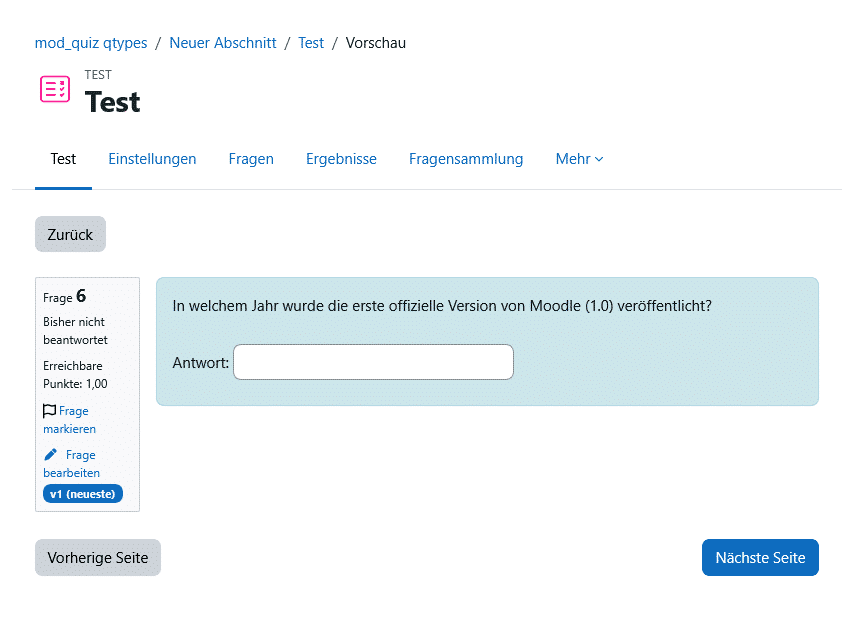
Like a short answer, but for numbers, with an adjustable tolerance and optional units.
When to use: For arithmetic problems with a specific numerical result, where rounding or measurement tolerance is acceptable.
Example: "Calculate the gross amount based on a net amount of €1,000 and 19% VAT." – is accepted 1190 with a tolerance of ±0.01 €.
Practical Tip: Set the tolerance deliberately. For physics or business problems, a small tolerance prevents rounding differences from being counted as errors.
7. Free-form text (essay)
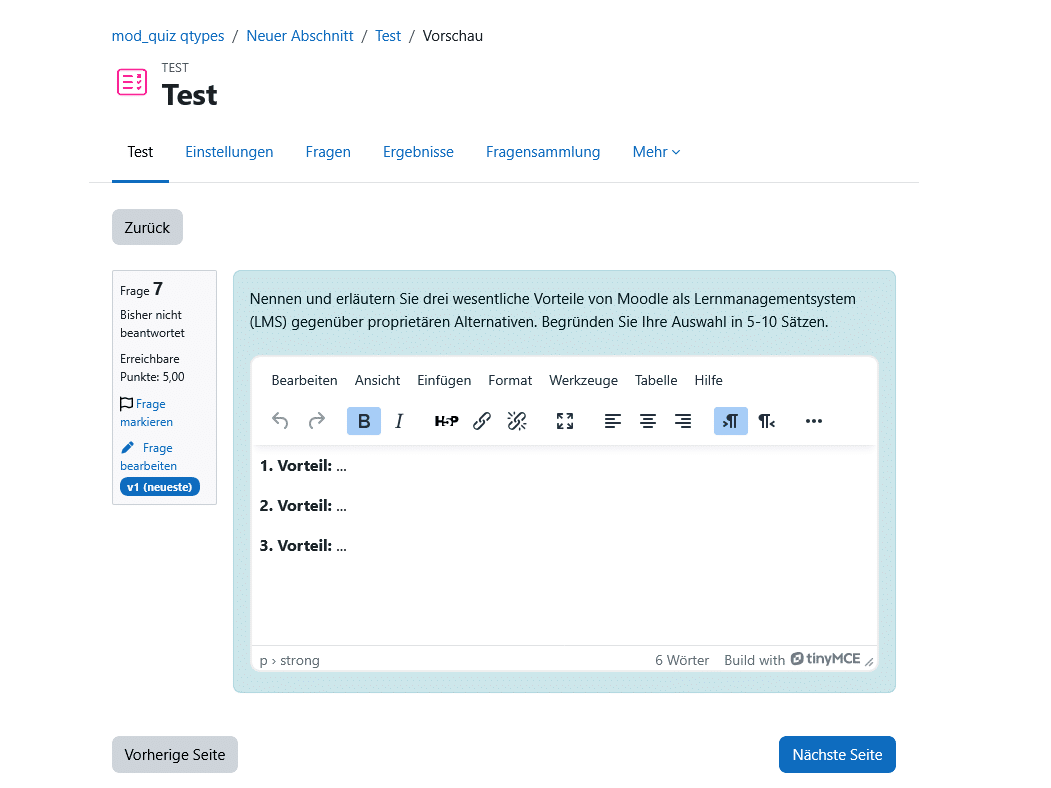
An open text field for multiple sentences or paragraphs. File attachments are allowed. Evaluation is done manually.
When to use it: For justifications, reflections, case studies, and explanations of code—anytime there isn't just one right answer.
Example: “Using an example, describe how Universal Design for Learning improves the accessibility of an online course (approx. 200 words).”
Practical Tip: Upload a grading rubric and use the answer template, which is displayed to participants in the editor as a structural framework. This makes manual grading faster and more transparent.
8. Cloze Exercise (Embedded Answers)
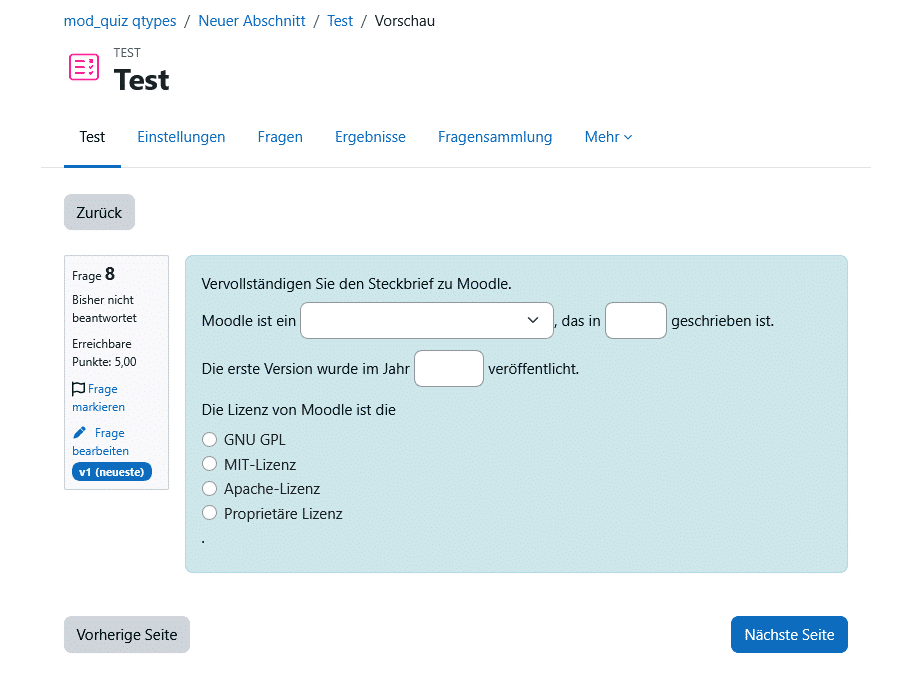
The most flexible standard question type. Multiple answer fields—multiple-choice, short-answer, and numeric—can be embedded in a block of text in any combination. The question is created using a special code syntax.
When to use: When a single question is intended to assess several subaspects within a coherent context.
Beispiel: Ein Lückentext, bei dem manche Lücken per Dropdown (Multiple-Choice) und andere per freier Eingabe (Kurzantwort) gefüllt werden: „Moodle wird in {1:MULTICHOICE:PHP~Java~Python} geschrieben und nutzt standardmäßig die Datenbank {1:SHORTANSWER:MariaDB}.“
Practical Tip: Cloze syntax is powerful but prone to errors. Create a sample question, copy it, and test the preview before you generate too many cloze questions.
9. Drag-and-Drop on Text
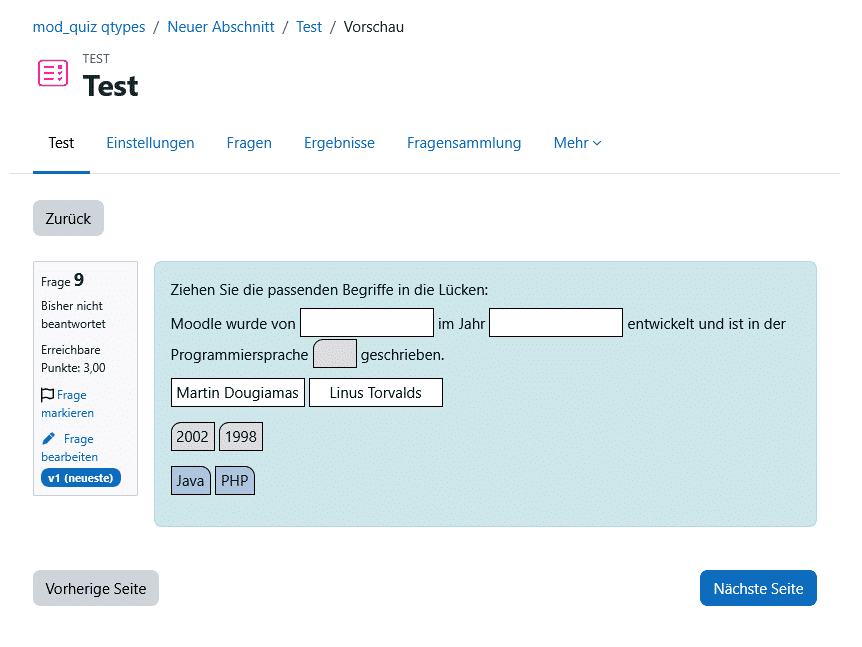
Missing words are dragged and dropped into the gaps in a text. Elements can be grouped and reused multiple times.
When to use it: Like a fill-in-the-blank exercise, but more visual and interactive—great for engaging students and for mobile devices.
Example: "Complete the workflow: The code is executed after git ___ and git ___ "transferred to the ___ repository." using the drag elements add, commit, Remote.
Practical tip: Include a few distractor terms that don't fit in any of the blanks. This prevents students from solving the problem by trial and error.
10. Drag-and-drop on image
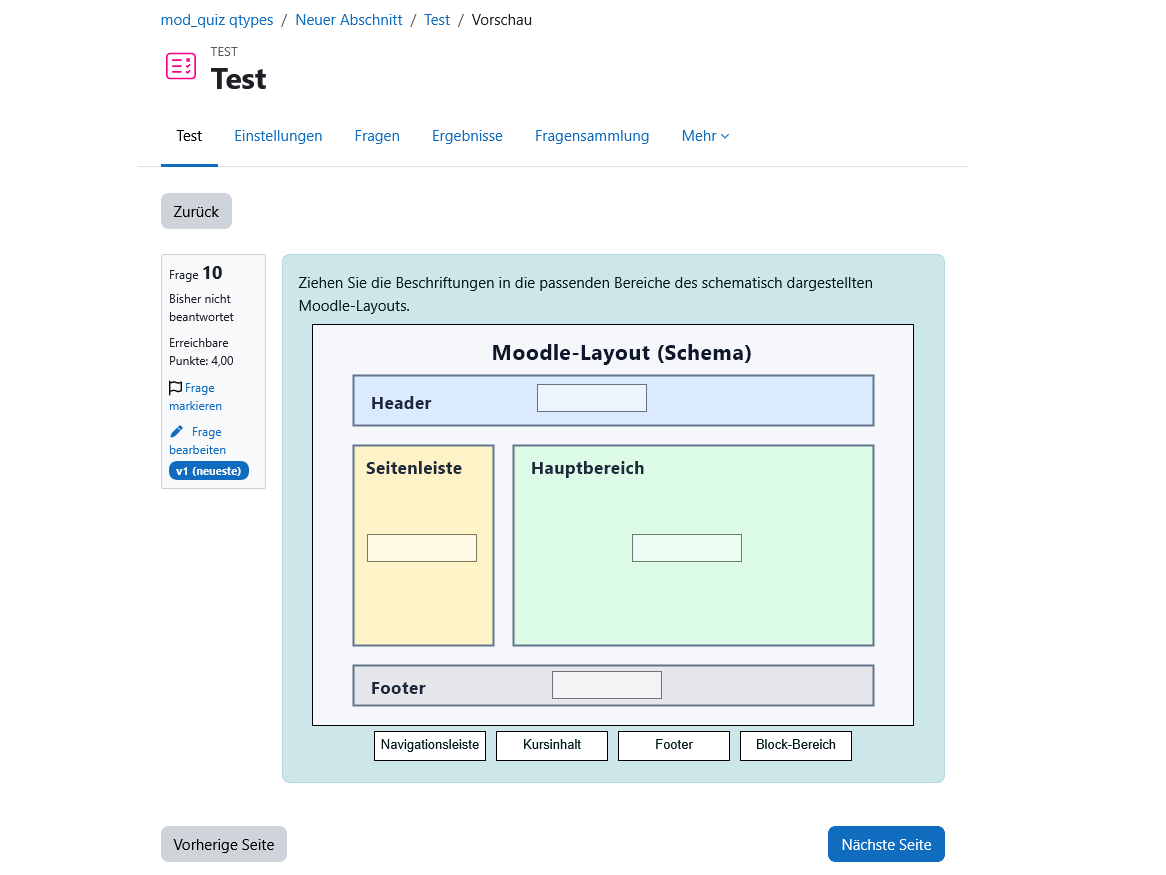
Text or image marks are dragged onto predefined boxes on a background image. Elements can be grouped.
When to use: For anything spatial or visual—labels, diagrams, anatomy, user interfaces, maps.
Example: An anatomical diagram in which the organs are dragged into their correct positions. Or a screenshot of the Moodle interface in which UI elements are labeled.
Practical tip: Make sure your drop zones are large enough and clearly visible, and that the image has high contrast—this is also a matter of accessibility and usability on small screens.
11. Drag-and-Drop Selections
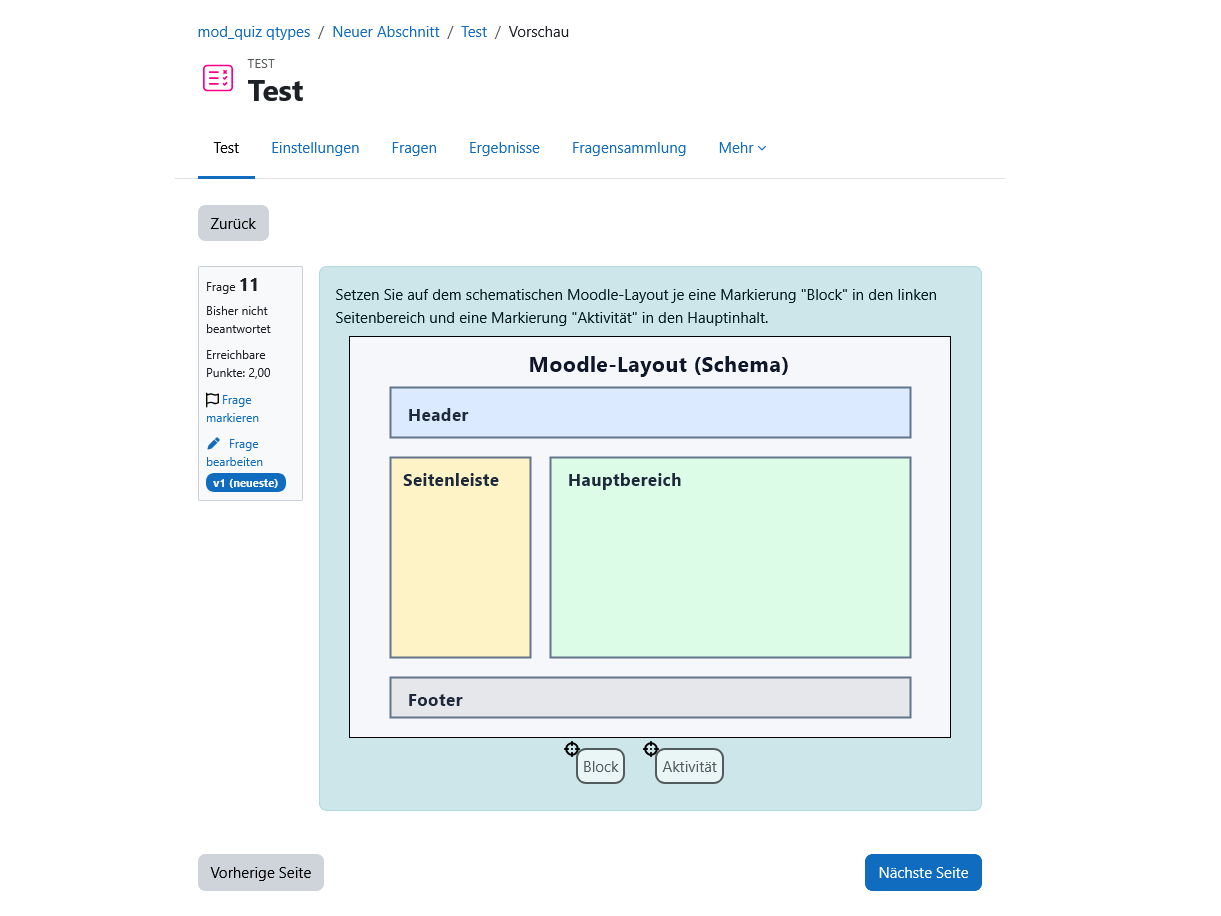
Similar to drag-and-drop on an image, but without visible drop zones. Participants place markers anywhere on the image; the winner is whoever lands on the correct area.
When to use: When the exact location is the actual learning objective and no assistance from visible fields is intended.
Example: “Mark the state capitals on the map.” – Participants place the markers exactly on the cities, without any pre-drawn target squares.
Practical tip: This method is more challenging than drag-and-drop onto an image. Define the hit zones generously enough to allow for reasonable tolerances.
12. Selection of Fill-in-the-Blank Exercises
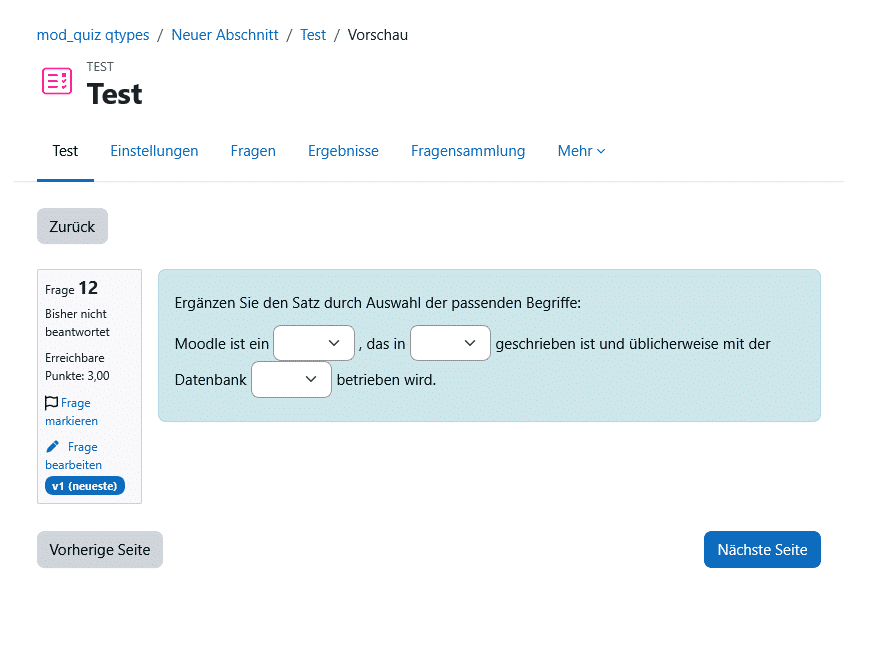
A text is missing words or parts of sentences that are selected from drop-down menus. Elements can be grouped and reused multiple times.
When to use: As a space-saving, mobile-friendly alternative to a fill-in-the-blank exercise when the answer options need to be predetermined.
Example: "A Moodle plugin of type ▾[mod/block/local] adds a new ▾[activity/setting/language] to the course."
Practical tip: Unlike drag-and-drop on text, the options are visible for each blank. This makes the exercise easier. Group the drop-down lists strategically so that not all options appear in every blank.
13. Calculated
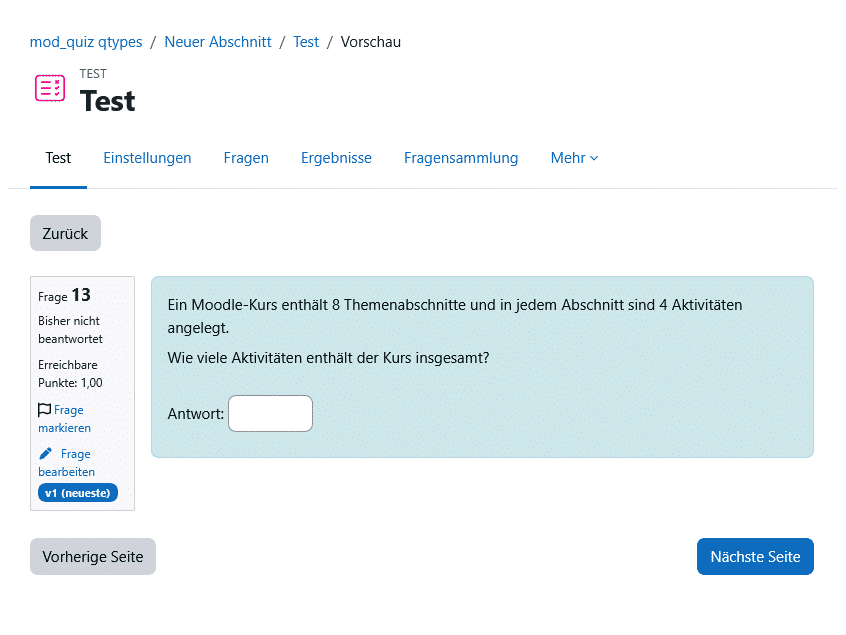
It's like a numerical question, but with wildcards that are replaced with random values from a range of values when the test is run. This means each person gets different numbers.
When to use it: In STEM subjects and in any situation where the same problem-solving logic needs to be tested using different numbers—it’s also an effective measure against cheating.
Example: "A server costs {a} € per month. What is the total cost for {b} months?" – {a} and {b} are randomly set for each trial; Moodle calculates the solution using the formula {a}*{b}.
Practical tip: Set the value range for the wildcards so that no nonsensical or trivial results are produced (e.g., division by zero). Check the generated data records in the preview.
14. Calculated Multiple-Choice
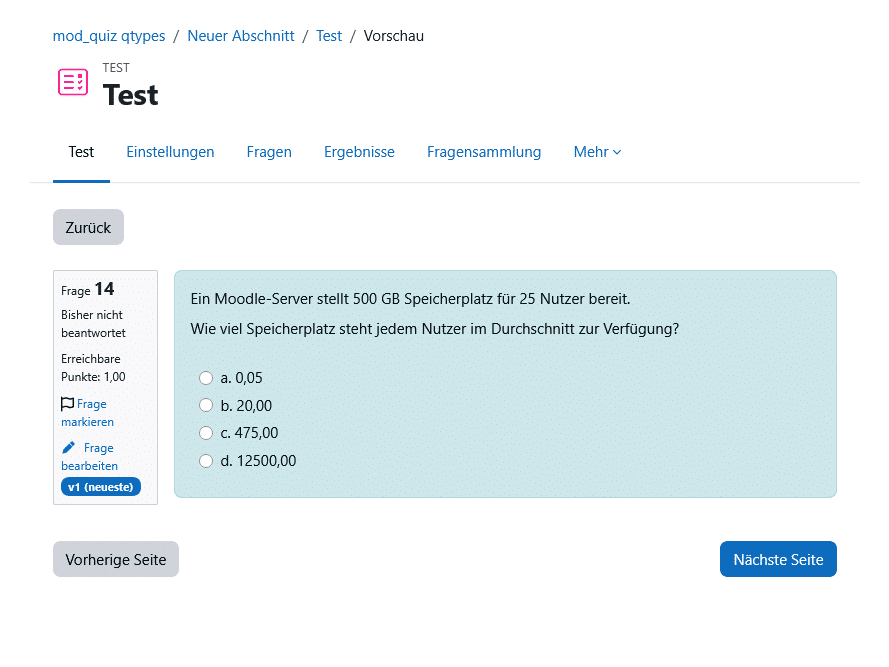
A combination of multiple-choice and calculated questions: The answer options contain formula results calculated from randomly selected values. The formula appears in the answer options as {=...} listed, e.g., {={l}*{w}} for the area of a rectangle.
When to use: When a calculation result is to be tested in a multiple-choice format—including plausible, pre-calculated incorrect options (distractors).
Example: "What is the area of a rectangle with dimensions {l} × {w}?" – appear as options {={l}*{w}} (correct) as well as common calculation errors such as {={l}+{w}} or {=2*({l}+{w})}.
Practical tip: The distractors you create should reflect common calculation errors—this makes the question diagnostically valuable rather than just a matter of luck.
15. Easy to Calculate
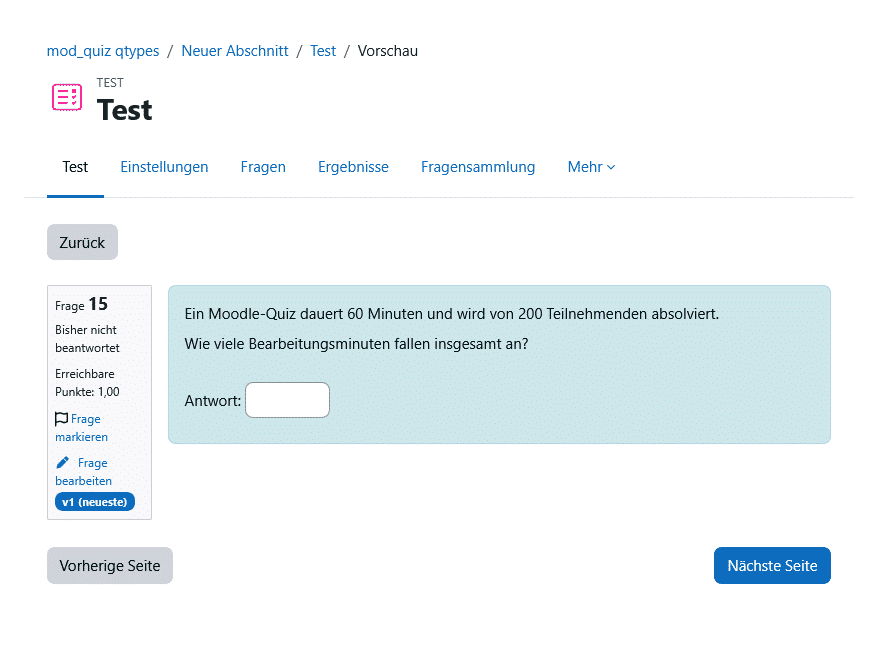
A simplified version of the calculated question with a simpler editor and fewer configuration options—it offers the most commonly used features.
When to use: As a quick introduction to random math problems, without having to familiarize yourself with the full range of features of the calculated question.
Example: "Calculate {x} × 7." with {x} as a random number between 2 and 12—ideal for basic arithmetic exercises.
Practical tip: For simple tasks, this type is quicker to set up. As soon as units, multiple formulas, or tighter tolerances are required, it’s worth switching to the full calculated question.
16. Random Assignment of Short Answers
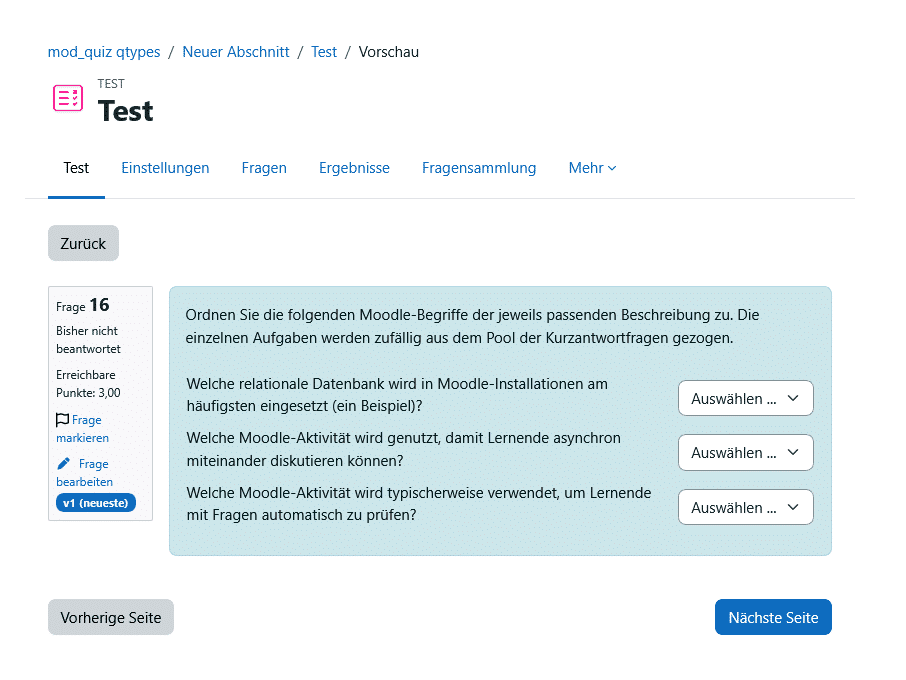
From the participants' perspective, this looks like a matching question. The difference is that the sub-questions are automatically and randomly selected from the short-answer questions in the current category of the question bank.
When to use: When you have a large set of short-answer questions and want to generate dynamically changing matching exercises from them.
Example: From a category containing 30 short-answer vocabulary questions, Moodle selects five random pairs for each attempt and presents them as a matching exercise—each test looks different.
Practical tip: To do this, create a clean, sufficiently large category containing similar short-answer questions. Do not mix in questions that are thematically unrelated, or the categorization will be unfair.
Special Case: Description
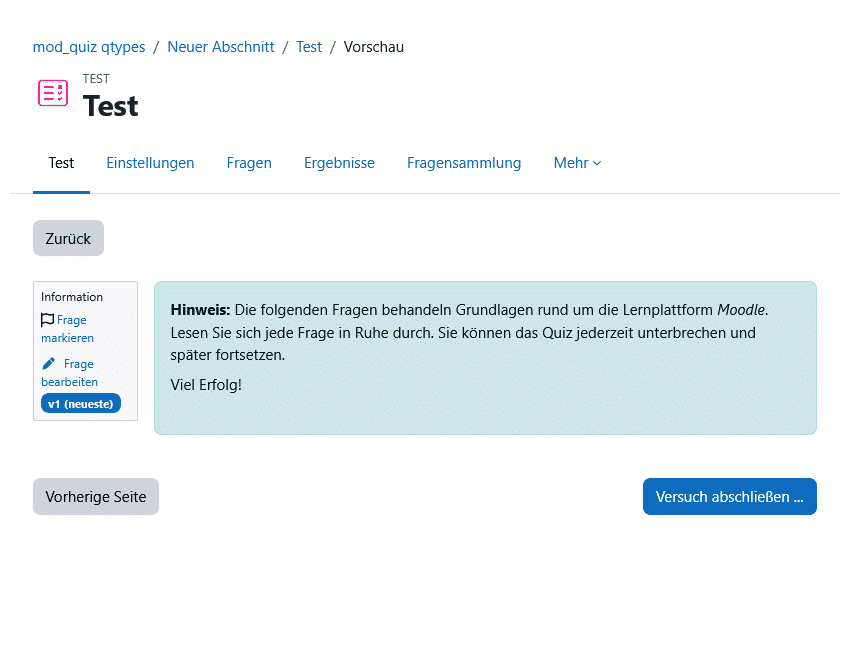
Strictly speaking, this is not a question type. Only text (and possibly a graphic) is displayed, and no answer is expected.
When to use: For subheadings, scenario descriptions, or notes that a subsequent set of questions refers to.
Example: Before a case block: “Read the following case description. The next three questions refer to it.”
Which Question Type to Use and When?
A Decision-Making Guide
| Learning Objective / Situation | Recommended Question Types |
|---|---|
| Quickly Look Up Facts | Multiple-choice, true/false, short-answer |
| Link Terms & Definitions | Mapping, Drag-and-Drop on Text |
| Check Sequences & Processes | Arrangement |
| Calculating with Custom Values | Calculated, Simple Calculation, Calculated Multiple-Choice |
| Check Spatial/Visual Aspects | Drag-and-drop on image, drag-and-drop markers |
| Comprehension & Reasoning | Free-form text |
| Several aspects in context | Cloze Exercises, Selection of Cloze Exercises |
| Make it harder to cheat | Calculated, Random Short Answer Assignment (+ Enable Shuffling) |
| Formative Self-Assessments | All automatically graded types with feedback enabled |
Rule of thumb: The higher the intended learning objective (ranging from knowledge to understanding to application and evaluation), the more worthwhile it is to use open-ended or complex question types rather than simple multiple-choice questions.
Tip: Use our Moodle Tool Guide—it provides a concise overview and allows you to compare the various activities and materials available in Moodle.
Popular Additional Question Types from the Community
In addition to the standard question types, the Moodle plugin directory offers many specialized question types. The following are particularly common:
- STACK – the standard for advanced mathematics and STEM: Entering entire formulas, evaluation using a computer algebra system, random variables, and detailed feedback.
- All-or-Nothing Multiple Choice – like multiple-choice questions, but full credit is awarded only for an exactly correct answer; otherwise, the score is zero.
- Drag-and-drop matching – Assigning items via drag-and-drop instead of a drop-down menu, which is often more intuitive.
- GapFill – a streamlined fill-in-the-blank exercise without complicated cloze syntax.
- Pattern match – short free-form responses that are automatically scored based on flexible pattern rules.
- Audio/recording question types (e.g., RecordRTC) – for spoken answers, such as in language exams.
Important Note for Exams: Question types made available through an add-on plugin may cause problems during Moodle updates or when importing/exporting question banks. Even a single incompatible question can block the import of an entire collection. Therefore, tag additional question types by category or tag, and prioritize the use of standard question types in legally compliant online exams.
Practical Tips for Productive Use
- Provide feedback: Feedback tailored to each answer turns every test into a learning opportunity, especially in formative self-assessments.
- Use partial credit: Many question types allow for weighted and partial scoring. This is fairer than a simple right/wrong answer.
- Enable Shuffling: Shuffle the answer options and the order of the questions to make it harder to cheat.
- Organizing your question set: Work with meaningful categories and tags from the very beginning—it pays off with every subsequent test.
- Use random questions: Instead of including fixed questions, you can draw random questions from a category. This way, each person gets a different set of questions.
- Keep accessibility in mind: Sufficient contrast, clear images, large interactive areas for drag-and-drop, and meaningful alternative text—this is especially important for visual question types.
- Always test in the preview: Be sure to use the preview—especially for cloze and calculated questions—before a question is included in the exam.
Conclusion
With its standard question types, Moodle covers virtually every instructional scenario—from quick knowledge checks to individualized math problems. The key is not to use as many types as possible, but to choose the right one for each learning objective and configure it properly. If you also maintain a structured question bank from the start, you’ll build up a reusable resource that becomes more valuable with every course.