Moodle Theme: Greater brand recognition, better navigation, and a cohesive look and feel
A Learning Management System should not only function properly, but also be a good fit for your organization. Colors, fonts, navigation, and page layout all influence how learners navigate Moodle and how they perceive your Learning Management System .
With a Moodle theme, you can customize the look and feel of your Learning Management System . You can adapt the user interface to your corporate design and create a clear navigation structure. Existing courses automatically adopt the theme's colors and fonts; you don't need to create anything new.
In this post, you'll learn what a Moodle theme is, what benefits it offers, how standard and custom themes differ, and how to choose the right theme for your needs.
Topics in this post
- What is a Moodle theme?
- What are the benefits of a Moodle theme?
- What are the standard Moodle themes?
- What are otherMoodle themes?
- Moodle LMS and Moodle Workplace: What are the differences between their themes?
- What design options does a Moodle theme offer?
- How do I install and configure a Moodle theme?
- Whatshould you look for when making your selection?
- Frequently Asked Questions (FAQ)
- Would you like to customize Moodle?
What is a Moodle theme?
A Moodle theme is a design template for the user interface of your MoodleLearning Management System. It determines how Moodle looks and how the various elements are arranged and displayed on the pages.
These include, for example:
- Colors and Fonts
- Logos and Background Images
- Header and footer sections of the pages
- Navigation and Menus
- Overview of Courses, Course Areas, and Activities
- Spacing, buttons, and other design elements
A theme is often referred to as a design template. It determines how the existing Moodle features are visually presented.
Important: A Moodle theme primarily changes the appearance of the site. It does not replace learning activities and does not automatically add new features. Plugins or other extensions may be required for that.
What does that mean in practice?
Your employees can find what they need faster in Moodle and recognize your company at a glance. With the right theme, the platform displays your logo, colors, and fonts. On their first day of work, new employees will see the “Onboarding” menu item in the main navigation bar, which takes them directly to the courses for their first few weeks without having to click through course areas (the folders in which Moodle organizes courses). You can create your own entries for product training or continuing education in the same way.
What are the benefits of a Moodle theme?
A suitable Moodle theme can enhance the user experience on your Learning Management System . What matters most is not just the design, but how well it supports navigation and access to learning content.
Customize the " Learning Management System " to match your corporate design
Your Learning Management System is often an important part of your internal communication and professional development. With a custom theme, you can incorporate your company colors, logos, fonts, and other design elements.
This allows Moodle to blend in better with your organization's visual identity. This is especially helpful if you already operate a corporate website, an intranet, or other digital learning platforms.
Improving Orientation for Students
A clear layout helps learners find their way around more quickly. Important sections can be visually highlighted, menus can be structured more clearly, and course offerings can be presented in a way that’s easier to understand.
Here's an example: Instead of a long, hard-to-navigate list of courses, you can display courses—provided the theme supports this layout—as cards with images and additional information.
This makes it easier for learners to identify which course is relevant to them.
Making Moodle Clear and User-Friendly
Not all features of a Learning Management System are equally important to every target audience. With the right design options, you can tailor the interface to the actual needs of your users.
These include, for example:
- intuitive navigation,
- a well-organized home page,
- clearly identifiable buttons,
- a logical visual hierarchy,
- a clear and easy-to-read presentation of content.
However, a theme alone does not guarantee good usability. The course structure, the quality of the content, and the instructional design also play an important role.
Support use on various devices
Whether at a desk, on a tablet, or on the go using a smartphone, your learners can access their courses from any device. A responsive theme automatically adjusts the layout to fit the screen size. This is especially helpful in places where there isn’t a computer, such as on the production floor or in the field. However, how easy Moodle is to use on a smartphone depends not only on the theme, but also on the Moodle version and the plugins being used.
This makes it easier to access courses while on the go or right at your workplace. How convenient the mobile experience is depends on the selected theme, the Moodle version, and the extensions used.
Further Developing the " Learning Management System " for the Long Term
A suitable theme provides a foundation on which you can gradually design your Learning Management System . Depending on the theme, you can configure additional colors, menus, content areas, or other display options.
This allows you to adapt the look and feel to changing requirements without having to rebuild the entire learning program from scratch.
What are the standard Moodle themes?
Moodle provides default themes that can be used without installing additional themes. The themes available depend on the version of Moodle you are using.
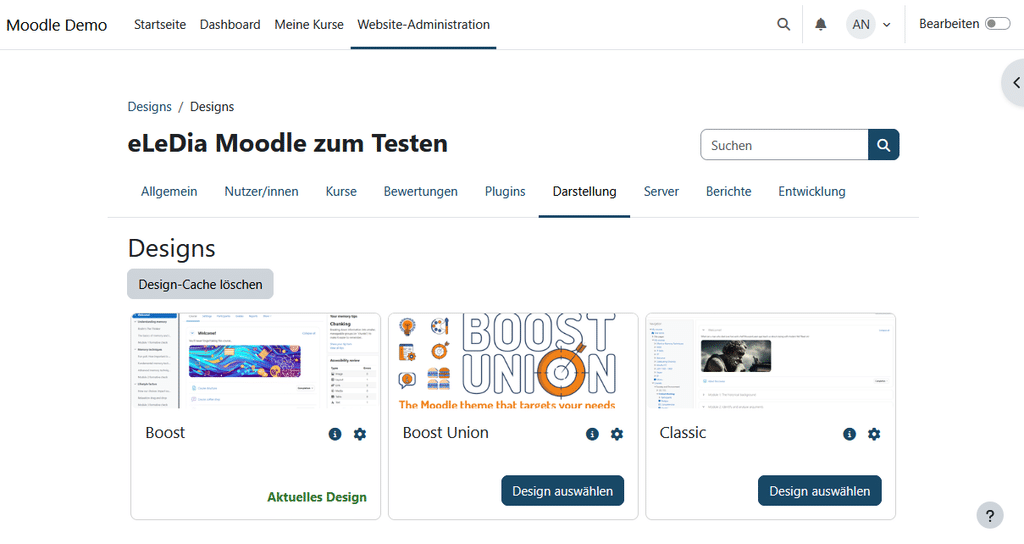
Boost – The Modern Standard Theme
Boost is a core default theme for Moodle and offers a modern, responsive user interface. It serves as the foundation for the design of many Moodle learning platforms.
Among other things, Boost offers:
• a responsive layout across different devices,
• an integrated navigation structure,
• basic customization options for colors and other interface elements,
• a solid foundation for customizations and themes built on top of it.
For many organizations, Boost is a good starting point. However, if you need more extensive customization options, an extended theme may be a good choice.
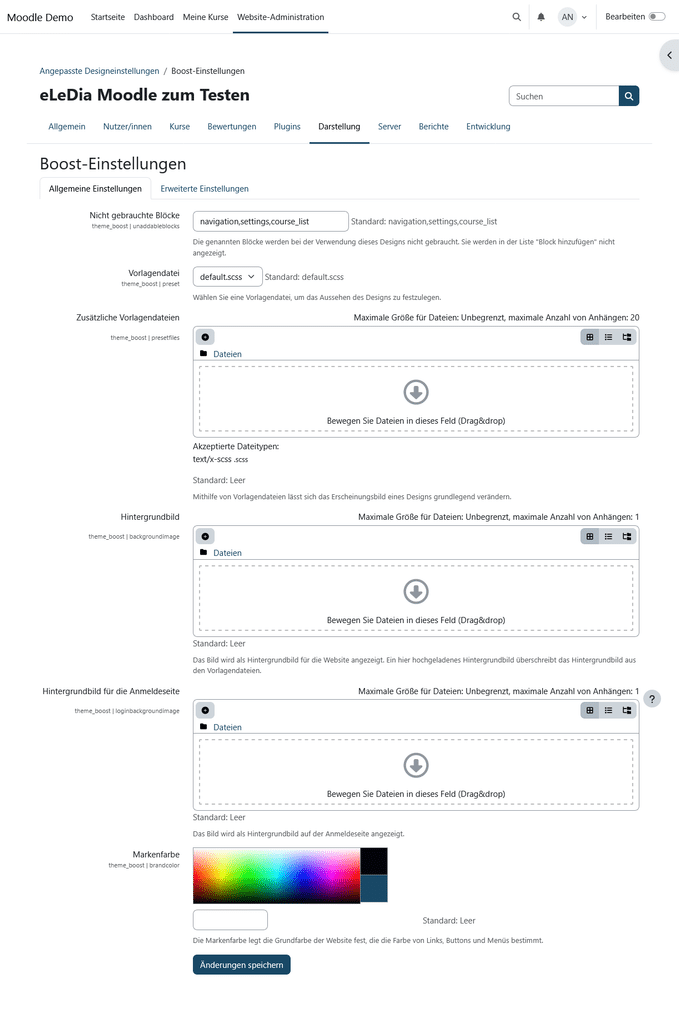
Classic – another standard theme
Classic is another Moodle theme that is available in many existing versions of Moodle. It is based on the classic Moodle interface and offers an alternative layout and navigation.
Important: Starting with Moodle version 5.3, Classic is no longer available as the default theme.
The specific selection of standard themes may vary between Moodle versions. Therefore, when upgrading to a new version, check which themes are available in your installation.
Is a standard theme enough?
That depends on your needs.
If you need a functional Learning Management System with a clean look, Boost may be all you need. Many customizations can be made through the Moodle administration interface.
If, on the other hand, you'd like to have more control over the design—for example, for the login page, the course overview, additional menus, or different layouts for various sections—it's worth checking out additional themes.
What are additional Moodle themes?
Additional Moodle themes expand the design options beyond those offered by the existing default themes. They are typically installed as theme plugins and, depending on the product, may provide additional settings and design elements.
You'll find a wide selection in the official Moodle Marketplace under "Themes." Before installing a theme, check whether it supports your version of Moodle and when it was last updated. Both pieces of information are listed on the page for each theme.
What possibilities do additional themes offer?
Depending on the theme, you can, for example:
• customize the login page more extensively,
• set up additional navigation menus,
• display course overviews differently,
• use your own fonts and colors,
• include additional content sections on the home page,
• customize specific areas of the interface.
Not every theme supports all of the features listed. Therefore, before making your selection, check which features are actually included and whether they suit your needs.
Boost Union – More Customization Options for Moodle
If you want to take advantage of Boost's proven foundation while also having more control over the appearance of your Learning Management System , the Boost Union Theme is an interesting option.
Boost Union expands the standard Moodle theme, Boost, with numerous additional configuration options. Among other things, this allows you to create your own menus, display information banners for important notices, use additional block areas, or manage pages such as the legal notice and privacy policy directly in Moodle.
One advantage: After installation, Boost Union initially behaves much like the standard Boost theme. You can selectively activate only the extensions you actually need.
This allows you to customize Moodle step by step to meet your needs without having to commission the development of a completely separate theme for every design change.
More About the Boost Union Theme
Moodle LMS and Moodle Workplace: What are the differences between their themes?
Moodle LMS and Moodle Workplace are based on the same technical foundation. Both platforms can be customized to match an organization’s corporate design. However, there is one important difference to consider when selecting a theme: Moodle Workplace requires a theme that also supports the specific features of the Workplace platform.
Moodle LMS: Customizing the Design of Learning Management System
In Moodle LMS, Boost is the default theme. You can customize it using the available settings or install an additional theme that offers more design options.
One example is Boost Union. The theme is based on Boost and adds, among other things, custom menus, information banners, and a custom appearance for individual course sections.
Moodle Workplace: The theme must support Workplace features
Moodle Workplace includes additional features for corporate training, such as clients, organizational structures, learning programs, and compliance training. The standard "Workplace" theme is tailored to these specific requirements.
This includes, in particular, support for different clients: Depending on the configuration, these can have their own theme settings and a customized appearance. For example, a shared Moodle Workplace installation can be used by different departments within a company or by different organizations without all of them having to look the same.
Important: Not every Moodle LMS theme supports the specific interface elements and client functions of Moodle Workplace. Therefore, be sure to use a theme that is explicitly designed for your version of Workplace. The Moodle documentation recommends the Workplace theme or a compatible theme based on it for Moodle Workplace .
Which theme is right for your platform?
- For Moodle LMS: Boost is a good place to start. If you need more design options, you might want to consider an additional theme such as Boost Union.
- For Moodle Workplace: Select the Workplace theme or a compatible child theme that supports Workplace-specific features. Also check whether you need different designs for different clients.
So, your choice of theme shouldn't be based solely on the desired design. It's also crucial to consider which platform you're using and what features your learning environment needs to support.
What design options does a Moodle theme offer?
Logo, Colors, and Fonts
With the appropriate design settings, you can tailor Moodle to match your organization's corporate identity.
These include, for example:
- Your company logo,
- the brand colors used,
- Fonts and font sizes,
- Wallpapers,
- Colors for links and buttons.
A consistent look and feel makes it easier to recognize Moodle and ensures that it integrates better into your existing digital environment.
Customize the login page
The login page is often the first point of contact with your Learning Management System. A clear layout helps users find the right access point.
Depending on the theme, you can, for example, set up a logo, background images, additional notes, or a customized layout for the sign-in options.
A clear presentation can be particularly helpful for organizations with multiple registration processes.
Present courses and course categories in a clear and organized manner
A well-organized course catalog helps learners choose the right courses for them.
Depending on the theme, courses can be displayed as cards or lists, for example. Course images, additional information, and a clear outline help users identify relevant offerings more quickly.
The design should be tailored to the number and type of your courses. If you offer only a few courses, a simple list may be sufficient; if you offer many courses, a more visual presentation may be beneficial.
Customize Navigation and Menus
Navigation determines how quickly users can access important sections. Additional menus or customizable navigation areas can help make frequently used features more accessible.
Boost Union provides, among other things, advanced menu functions for this purpose. The elements you can include depend on the configuration and requirements of your Moodle installation.
Highlight information on the home page
The home page can be more than just a list of available courses. Depending on the theme, you can integrate additional notes, tiles, or other content areas.
For example, you can use this to highlight new learning opportunities, important dates, internal contacts, or support information.
It is important that the home page remains uncluttered and does not overwhelm learners with too much information.
How do I install and configure a Moodle theme?
Installing an additional theme usually requires administrative privileges and access to the Moodle system environment. The exact steps depend on the theme, the Moodle version, and the hosting environment.
Step 1: Choose a suitable theme
First, check what design options you need and whether the theme is compatible with your version of Moodle.
Also consider how often the theme is updated and whether technical support is available.
Step 2: Install the theme
Additional themes are installed as plugins. Depending on your Moodle installation, this can be done through the plugin manager or by uploading the theme files to the server.
After installation, Moodle may require additional administrative steps, such as updating the plugin database.
Step 3: Select a theme in Moodle
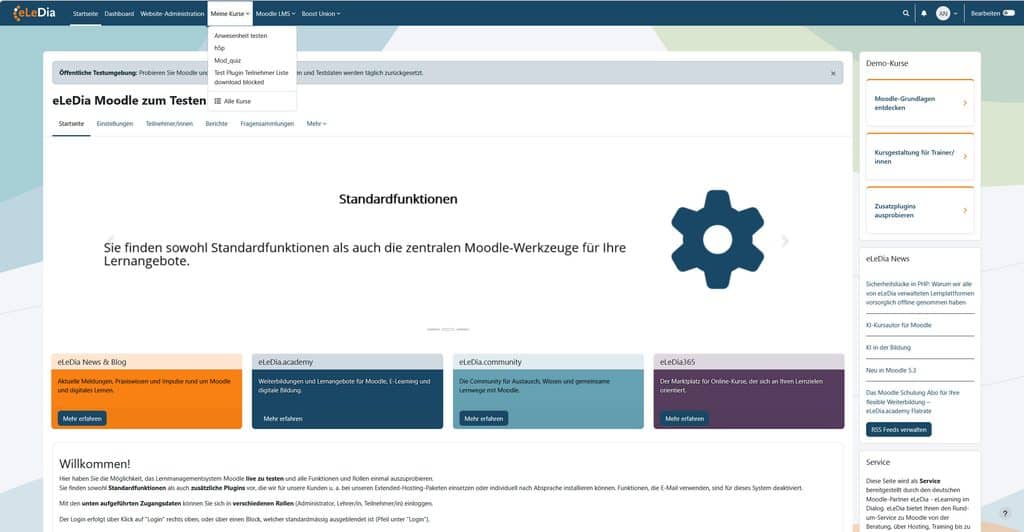
In the Moodle administration panel, you can find the theme management section at:
Website Administration → Appearance → Themes
There, you can select the theme you want and—if supported—open its settings.
The exact names of individual menu items may vary depending on the Moodle version and language settings.
Step 4: Configure the Design
Customize the available settings to meet your needs. This may include colors, logos, fonts, menus, or other interface elements.
Not every setting is available in every theme. Further customization may require additional technical knowledge or development work.
Step 5: Test the changes
Before you release a new theme to all users, you should test it thoroughly.
In particular, please check the following:
- the display on desktops, tablets, and smartphones,
- navigation and access to important courses,
- text readability and color contrast,
- a display of frequently used activities,
- Usability with a keyboard and assistive technologies.
Also keep in mind that theme changes and version updates must be coordinated with one another.
What should you look for when choosing a Moodle theme?
The right Moodle theme depends on your goals, your technical environment, and the needs of your target audiences.
These questions will help you make a decision:
1. To what extent should Moodle be customized to match your corporate design?
If the logo, colors, and basic design are sufficient, a standard theme may be enough. For more extensive customizations, a custom theme may be a good option.
2. What design options do you really need?
Make a list of the most important requirements—such as those for the login page, the navigation, or the course overview. This will help you avoid choosing a theme solely because it has a long list of features.
3. Is the theme compatible with your version of Moodle?
Check the supported versions and learn more about the theme's maintenance. A technically outdated extension may cause problems with future updates.
4. How easy is it to manage the theme?
A theme with extensive settings can offer you a great deal of flexibility. At the same time, you should consider how much time will be needed for configuration, testing, and future customizations.
5. Have accessibility and mobile use been taken into account?
Make sure there is sufficient contrast, clearly visible controls, intuitive navigation, and a responsive layout. Be sure to check these aspects in your specific configuration as well.
Conclusion: Design Learning Management System to meet your specific needs with the right Moodle theme
A Moodle theme affects the appearance of your Learning Management System and how learners navigate it. It offers ways to implement your corporate design, present courses clearly, and customize the user interface to meet different needs.
A standard Moodle theme like Boost is often a good choice to get started. If you need more design flexibility, additional themes can provide the options you need.
The Boost Union theme expands Boost with numerous configuration options—from the design of the login page to course display and navigation. This makes it ideal for organizations that want to customize their MoodleLearning Management System without straying unnecessarily from the Moodle standard.
More About the Boost Union Theme
Frequently Asked Questions (FAQ)
What is a Moodle theme?
A Moodle theme is a design template that determines the appearance of a MoodleLearning Management System . Among other things, it affects colors, fonts, navigation, and the display of courses and pages.
Is a Moodle theme a plugin?
A theme is a special type of Moodle plugin. While many other plugins provide additional features, themes are primarily used to customize the user interface. Advanced themes may also include additional design options and features.
Is a Moodle theme free?
Moodle provides standard themes. In addition, there are free and paid additional themes. When choosing free themes, you should also consider compatibility, maintenance, and available support.
Can I design a Moodle site without any programming knowledge?
Yes. Many customizations can be made through a theme's settings, such as colors, logos, or specific display options. More extensive changes to the layout or code may require technical knowledge.
Can I change the Moodle theme later?
Yes. You can change the active theme in the Moodle administration panel, provided that the desired theme is installed and available for use. Changing the theme generally alters the appearance, not the saved course content. Individual design settings or theme-specific elements may need to be reconfigured afterward.
Can I use different themes for different Moodle courses?
In principle, this is possible, provided that the corresponding feature is enabled and the Moodle configuration allows it. Depending on the settings, Moodle supports different theme contexts—for example, for the entire website, course areas, or individual courses. Whether and how this can be implemented depends on the Moodle version and the available themes.
What is the difference between Boost and Boost Union?
Boost is a standard Moodle theme with basic customization options. Boost Union builds on Boost and expands it with numerous additional settings and features, such as options for colors, the login page, navigation, and course layout.
Is Boost Union suitable for any Moodle installation?
Boost Union is suitable for Moodle installations that meet the supported Moodle version and technical requirements. Before installation, you should check the current compatibility and test the changes in a suitable test environment.
Would you like to customize Moodle?
Would you like to customize your Learning Management System to match your corporate design and make the most of Boost Union's features? eLeDia can help you with the design, configuration, and customization of your Moodle environment.
Find out what features the Boost Union theme offers for your MoodleLearning Management System , or contact us for a personalized consultation.